

Table of Contents
Key takeaways:
Playwright is an automation library with built-in support for Chromium, Firefox, and WebKit from one script.
Playwright allows you to set up proxies for each browser context or at the whole application level.
Sticky proxy sessions are better for multi-step workflows, while per-request rotation is better for independent fetches.
Playwright is an open-source browser automation library from Microsoft. It lets you use Chromium, Firefox, and WebKit through a single API. The same automation or web scraping script can run on all three engines while using official packages for Python, Node.js, Java, and .NET.
With Playwright, proxy support is built into the framework, so you don't need any external tools. You put the server address, username, and password directly into the launch options. The whole integration is a few Playwright code lines in your script.
How To Configure My Proxy On Playwright
Step 1: Get Your anyIP Proxy Credentials
Create an anyIP account and access the proxy dashboard.
After selecting a plan, click the Proxies tab and choose the Add profile button.
Set up your proxies by choosing your proxy server type (Residential, mobile, or mixed pool), proxy authentication method (username and password or IP whitelisting), proxy protocol (SOCKS5, HTTP, or HTTPS), and other details.
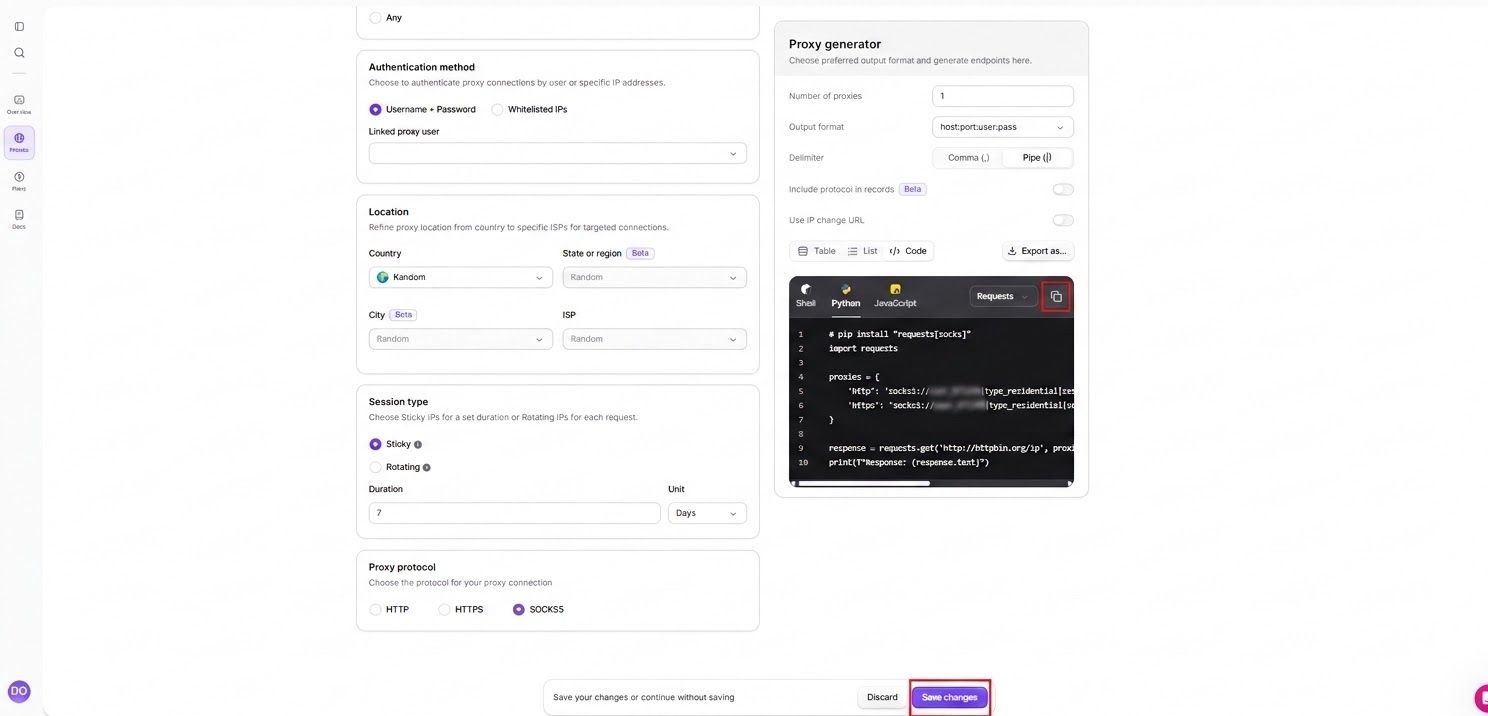
Tweak the settings to your needs and copy them to insert your proxy into Playwright. Your proxy credentials (host, port, username, and password) will be visible in the Proxy generator section. You can also change the output format to fit your code. Your username string follows the format user_XXXX,country_US,session_..., and the default output format is host:port:user:pass. If your software doesn't accept commas in the username, switch the delimiter to Pipe (|).
Click Save changes for later use, or copy and use the credentials without saving.
Step 2: Install Playwright
To use Playwright, you need not just the library itself, but also the browser binaries. For this reason, we need to run two commands in the terminal. Here's how they look if you're using Python:
pip install playwright
python -m playwright install
Double-check that you have Python 3.10 or newer when using Playwright, as it's needed to run it.
If you want to use Node.js, you'll need to run these commands:
npm install playwright
npx playwright install
Step 3: Set the Proxy at Browser Launch
Playwright can take proxy server settings as an object in the launch options. Pass it to chromium.launch(), and every page that the browser opens exits through your anyIP proxy server IP. Here's how it looks in code:
Python
from playwright.sync_api import sync_playwright

PROXY = {
    "server": "http://portal.anyip.io:1080",
    "username": "user_XXXX,type_residential,country_US",
    "password": "YOUR_PASSWORD",
}

with sync_playwright() as p:
    browser = p.chromium.launch(proxy=PROXY, headless=False)
    page = browser.new_page()
    page.goto("http://ip-api.com/json")
    print(page.inner_text("body"))
    browser.close()
Node.js
const { chromium } = require('playwright');

const proxy = {
  server: 'http://portal.anyip.io:1080',
  username: 'user_XXXX,type_residential,country_US',
  password: 'YOUR_PASSWORD',
};

(async () => {
  const browser = await chromium.launch({ proxy, headless: false });
  const page = await browser.newPage();
  await page.goto('http://ip-api.com/json');
  console.log(await page.innerText('body'));
  await browser.close();
})();
Step 4: Add Proxy Authentication
The proxy object in the previous step has three placeholder fields that you need to fill in yourself. For authentication, the server address, username, and password can all be filled in with the proxy credentials you found in step one.
Server — the scheme, host, and port combined, as shown in your dashboard: http://portal.anyip.io:1080. For SOCKS5, use IP whitelisting instead of a username and password, since Playwright doesn't support SOCKS5 authentication.
Username — your full username string including flags, such as user_XXXX,type_residential,country_US. Paste the whole line.
Password — your proxy password on its own. Consider using environment variables for it for security purposes.
Free proxy server providers might not ask for authentication, since they accept anyone who knows the host and port. It might seem easier, but it's also why such Playwright proxies are less safe, congested, or disappear without notice.
More importantly, the username carries your configuration, so country_US and type_residential are instructions telling the gateway that you need residential IPs from the US.
Be careful not to mix up the credentials. Making a mistake or using the wrong format will return a 407 Proxy Authentication Required error. You can simplify Playwright proxy authentication to avoid using a password by setting up IP whitelisting.
Step 5: Set the Proxy Per Browser Context
Browser contexts are isolated profiles inside Playwright, allowing each to have their own cookies, local storage, and proxy implementation.
It can be set up by moving the proxy object from launch() to new_context(), and giving each context a different session_ name. As such, every single browser context can have a different IP address.
Python
from playwright.sync_api import sync_playwright

SERVER = "http://portal.anyip.io:1080"
PASSWORD = "YOUR_PASSWORD"

SESSIONS = [
    "user_XXXX,type_residential,country_US,session_acct1",
    "user_XXXX,type_residential,country_DE,session_acct2",
    "user_XXXX,type_mobile,country_GB,session_acct3",
]

with sync_playwright() as p:

    browser = p.chromium.launch(headless=False)

    contexts = [
        browser.new_context(
            proxy={"server": SERVER, "username": username, "password": PASSWORD}
        )
        for username in SESSIONS
    ]

    for username, context in zip(SESSIONS, contexts):
        page = context.new_page()
        page.goto("http://ip-api.com/json")
        print(username, "->", page.inner_text("body"))

    browser.close()
Node.js
const { chromium } = require('playwright');

const SERVER = 'http://portal.anyip.io:1080';
const PASSWORD = 'YOUR_PASSWORD';

const sessions = [
  'user_XXXX,type_residential,country_US,session_acct1',
  'user_XXXX,type_residential,country_DE,session_acct2',
  'user_XXXX,type_mobile,country_GB,session_acct3',
];

(async () => {

  const browser = await chromium.launch({ headless: false });

  await Promise.all(sessions.map(async (username) => {
    const context = await browser.newContext({
      proxy: { server: SERVER, username, password: PASSWORD },
    });
    const page = await context.newPage();
    await page.goto('http://ip-api.com/json');
    console.log(username, '->', await page.innerText('body'));
    await context.close();
  }));

  await browser.close();
})();
You can see that each browser context gets its own IP address: a US residential IP, a German one, and a UK mobile one. The contexts run side by side without sharing an IP (the Node.js version opens them in parallel, while the Python sync version opens them one after another).
They do share the same browser fingerprint, so keep settings like time zone and language consistent with each proxy's location.
Step 6: Verify the Proxy Is Working
The scripts we wrote so far use the ip-api.com HTTP endpoint to print the IP address the site sees. If the address is that of your proxy rather than your own, the connection was successful.
To test whether your proxies in Playwright work, save the scripts as check.py and run python check.py, or as check.js and run node check.js from the terminal. Here's what the output might look like:
{"status":"success","country":"United States","countryCode":"US","region":"NY","regionName":"New York","city":"New York","zip":"10001","lat":40.7143,"lon":-74.006,"timezone":"America/New_York","isp":"Verizon Fios","org":"Verizon Fios","as":"AS701 Verizon Business","query":"72.xx.xx.xx"}Rotating Proxies in Playwright
Web pages count the requests you send them per IP address. If you send more requests than the rate limit allows, your IP will get flagged, and your access will eventually be blocked. Proxy rotation spreads requests between IPs so no single IP hits the rate limit.
You can implement proxy rotation manually by creating a list of proxies and picking from it for each context.
Python
import random

POOL = ["http://ip1:8000", "http://ip2:8000", "http://ip3:8000"]

context = browser.new_context(proxy={"server": random.choice(POOL)})
Node.js
const pool = ['http://ip1:8000', 'http://ip2:8000', 'http://ip3:8000'];

const pick = pool[Math.floor(Math.random() * pool.length)];
const context = await browser.newContext({ proxy: { server: pick } });
Another option is to use provider-supported proxy rotation. With rotating proxies from anyIP, everything is handled at the gateway, so no pool management is needed in the script.
The tradeoff is that manual pools can tell you exactly which IP they're on, while gateway rotation doesn't. Some web scraping or automation use cases might require manual rotation, but in most cases provider-rotated proxies are preferable.
When to Rotate Per Request
Per-request rotation assigns a new IP address to every connection, so nothing carries from one request to the next. This is preferable for single-page fetches, product listing pages, search results, and high-volume web scraping.
However, in many use cases, each request must retain the identity of the user. A browser session holds cookies and other local storage data across page loads, so if the IP changes, the site might break users' logins, checkout flows, or interrupt pagination.
Your proxy in Playwright is acting like this by default. If you point a script to a rotating proxy gateway with no session ID, every connection gets a fresh IP address. This can result in several different IPs within a single page load, which is why multi-step flows need a session ID in the username to pin the IP in place.
Using Sticky Sessions for Multi-Step Flows
A sticky session helps you retain the same IP address for longer. With anyIP, you can use sessions for up to seven days using the session_ in your username. Most use cases, such as logins, carts, checkouts, pagination, or multi-step forms, can work with less.
Large-scale tasks, such as web scraping lots of data, are better with many short sessions rather than a few long ones. In such cases, a fresh session ID is assigned for each browser context, and after the task is done, the whole Playwright proxy context is discarded.
Here's how this looks in code when generating a new session ID per context in a loop.
Python
import uuid
from playwright.sync_api import sync_playwright

SERVER = "http://portal.anyip.io:1080"
PASSWORD = "YOUR_PASSWORD"
BASE = "user_XXXX,type_residential,country_US"

TARGETS = ["https://example.com/a", "https://example.com/b", "https://example.com/c"]

with sync_playwright() as p:

    browser = p.chromium.launch(headless=True)

    for url in TARGETS:
        session = uuid.uuid4().hex[:8]
        context = browser.new_context(
            proxy={
                "server": SERVER,
                "username": f"{BASE},session_{session}",
                "password": PASSWORD,
            }
        )
        page = context.new_page()
        page.goto(url)
        # log in, paginate, check out — all on one IP
        print(session, page.title())
        context.close()

    browser.close()
Node.js
const { randomUUID } = require('crypto');
const { chromium } = require('playwright');

const SERVER = 'http://portal.anyip.io:1080';
const PASSWORD = 'YOUR_PASSWORD';
const BASE = 'user_XXXX,type_residential,country_US';

const targets = [
  'https://example.com/a',
  'https://example.com/b',
  'https://example.com/c',
];

(async () => {

  const browser = await chromium.launch({ headless: true });

  for (const url of targets) {
    const session = randomUUID().slice(0, 8);
    const context = await browser.newContext({
      proxy: {
        server: SERVER,
        username: `${BASE},session_${session}`,
        password: PASSWORD,
      },
    });
    const page = await context.newPage();
    await page.goto(url);
    // log in, paginate, check out — all on one IP
    console.log(session, await page.title());
    await context.close();
  }

  await browser.close();
})();
Sticky Sessions vs Static IPs for Short Scraping Flows
A static IP is a fixed address you can assign to one device, and it stays there indefinitely. Static proxies thus suit use cases where sites expect to see accounts returning with the exact same IP over weeks or months.
A static IP builds a continuous history across every session it runs. Behavior from one flow carries into the next, so it's best to use static IPs only for a few tasks at a time, avoiding short web scraping flows.
Additionally, such proxies often stay unused, and you still must pay for their subscription. Sticky sessions, by comparison, are much more flexible. There are no additional costs or costs per idle addresses, no pool to maintain, and a much larger address range to draw from.
Choosing the Right Proxy Type for Playwright
Residential proxies come from real home connections and are best for handling strict targets and geo-specific content. Datacenter proxies are best for speed and high volume on tolerant sites, while mobile proxies are best for the strictest targets and mobile-only content.
Each proxy type has its use cases, but for most Playwright projects residential proxies are a sensible default, with mobile proxies reserved for the strictest targets. The only type to avoid is free proxies - they perform poorly and can pose a security risk.
Playwright supports HTTP, HTTPS, and SOCKS5. SOCKS5 works with IP whitelisting only, since Playwright doesn't support SOCKS5 username/password auth. But you can use HTTP and HTTPS proxies without any restrictions or workarounds.
Conclusion
Playwright is a default for many automation and web scraping tasks partly because it is so straightforward to use proxies in Playwright. Once you know where the proxy object goes and when to pin a session, the whole Playwright proxy setup takes a few lines.
Frequently Asked Questions
Can I rotate proxies automatically in Playwright?
Yes. Although Playwright doesn't have rotation settings on its own, each browser context uses its own proxy server, so you can rotate IP addresses by opening new contexts. Another option is to use anyIP's rotating proxies, which allow you to use a different proxy with every request or hold it for a set time.
Which proxy type works best with Playwright?
Mobile and residential proxies in Playwright projects are usually the best choice. Tasks like web scraping benefit most from residential proxies since these IPs are trusted and stable. However, some automation or account management projects might require mobile IP addresses. Get options in mixed or separate proxy server pools with anyIP.
How long can a sticky session last?
From one minute up to seven days if you use anyIP proxy servers. All the proxy settings for session duration and proxy rotation are available in the dashboard. The actual limits to sticky IP duration may vary based on the availability of mobile devices and home routers.
Should I set the proxy at launch or per context?
Unless you want every browser context to share the same IP address, set your proxy server for each context. Global proxy settings per launch set one Playwright proxy for all contexts. It's not what you want in most web scraping, automation, or account creation cases.
Does Playwright support SOCKS5 proxies?
Yes. However, keep in mind that Playwright's docs list proxy credentials as HTTP-only, and SOCKS5 proxy authentication has been a requested feature since 2020. So if you want to use username- and password-authenticated proxies, you'll need to use HTTP or HTTPS, or use IP whitelisting instead.
Why does my scraper still get blocked with a proxy enabled?
Proxy servers are necessary to avoid blocks, but they are insufficient on their own. Various browser fingerprint signals, such as time zone, language, fonts, and canvas, must also be correctly adjusted to match the proxy server IP. Also consider behavioral signals, such as imposing rate limits on requests.