:format(webp))
Table of Contents
Running several accounts takes more than separate browser profiles. Each profile also needs an IP that matches the profile and stays consistent over time. Linken Sphere covers session isolation and the fingerprint, while we get you the IPs you need.
We'll walk you through the whole journey: signing up, getting your proxy details, launching a working session in Linken Sphere, then checking connection speed and whether the proxies work as intended. We'll also cover the login format, IP rotation, and sticky sessions, because that's where most questions come from.
What anyIP gives you
anyIP is a dual-pool proxy provider offering residential, mobile, or mixed IPs under one subscription. You pay for traffic by volume, and both types are included, so you can use the one you need.
Our proxies support HTTP, HTTPS, and SOCKS5 protocols, and you can authorize access with a login and password or by whitelisting your IP. We recommend picking residential proxies for day-to-day work with websites, marketplaces, and web services. Mobile addresses come in handy on social networks and any platform that scrutinizes IP quality.
How the anyIP login is built
The main thing to get before you set anything up: pass the proxy parameters inside the login itself. These are network type, country, city, carrier, and session ID. For example:
user_XXXX,type_mobile,country_US,session_ls_profile_01
Where:
user_XXXXis your user ID;type_mobileis the mobile proxy type;country_USgives you a US IP;session_ls_profile_01is the sticky session ID.
In Linken Sphere, you’ll paste that whole string into the login field. Don't split it up, and don't move the country or the proxy type into other fields.
How to set up anyIP in Linken Sphere
1. Sign up with anyIP
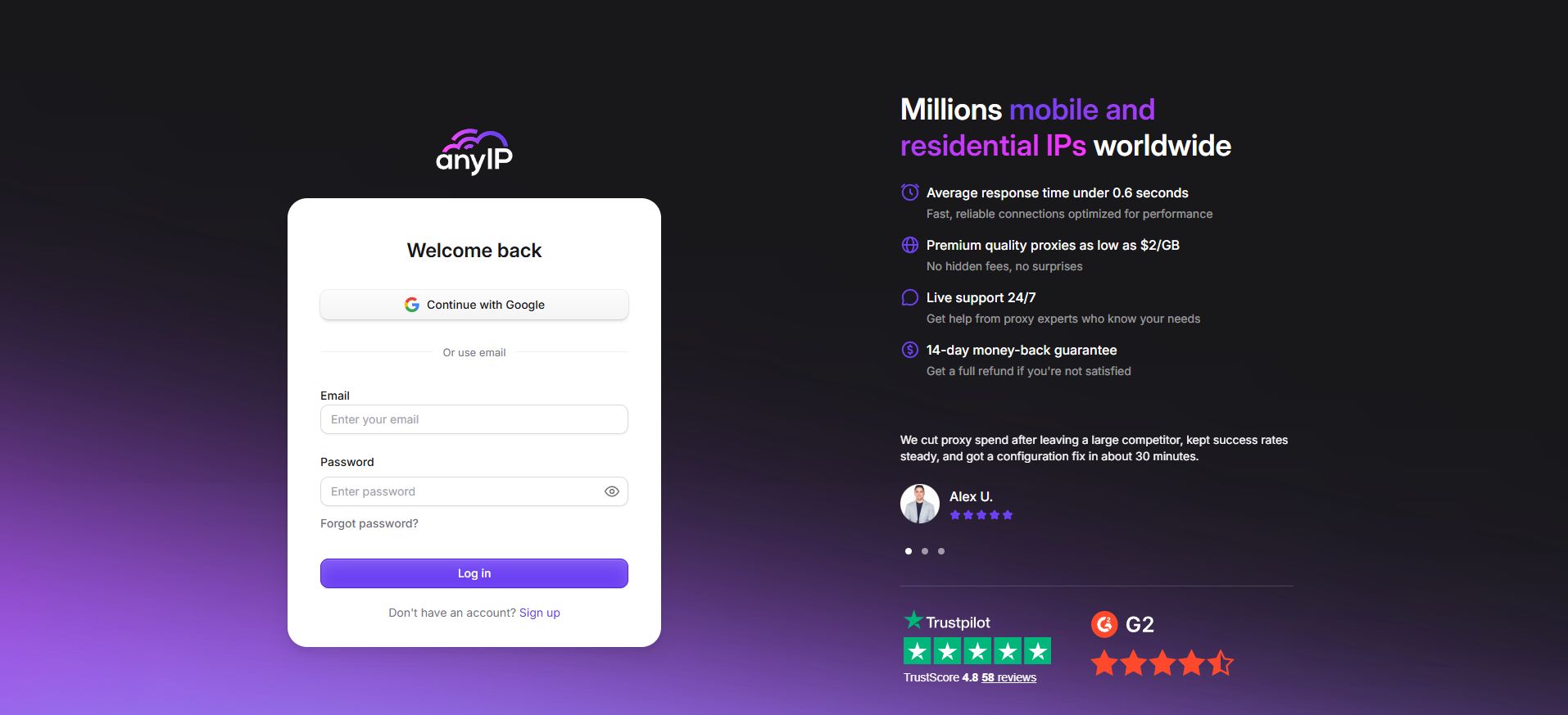
Open our registration page, create an account, and confirm your email.
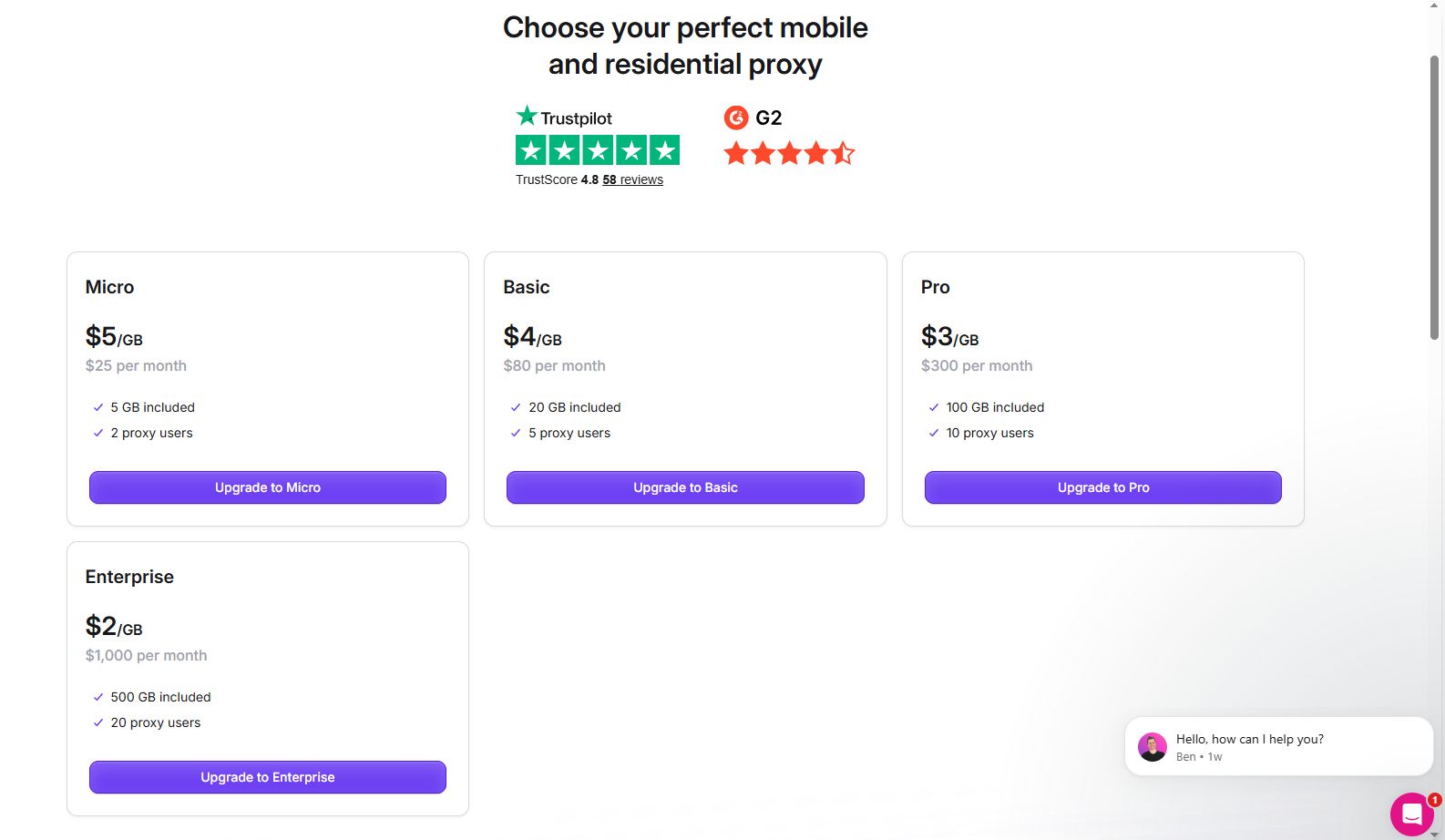
Once you're in, pick a plan and top up your balance. Choose a plan based on your predicted monthly usage.
Remember that browsing burns traffic more than you’d expect. Images, video, ad blocks, background requests and other content all count. In the profile settings, you can switch off images and ads to save traffic, as long as that doesn't get in the way of your work.
2. Get your proxy details
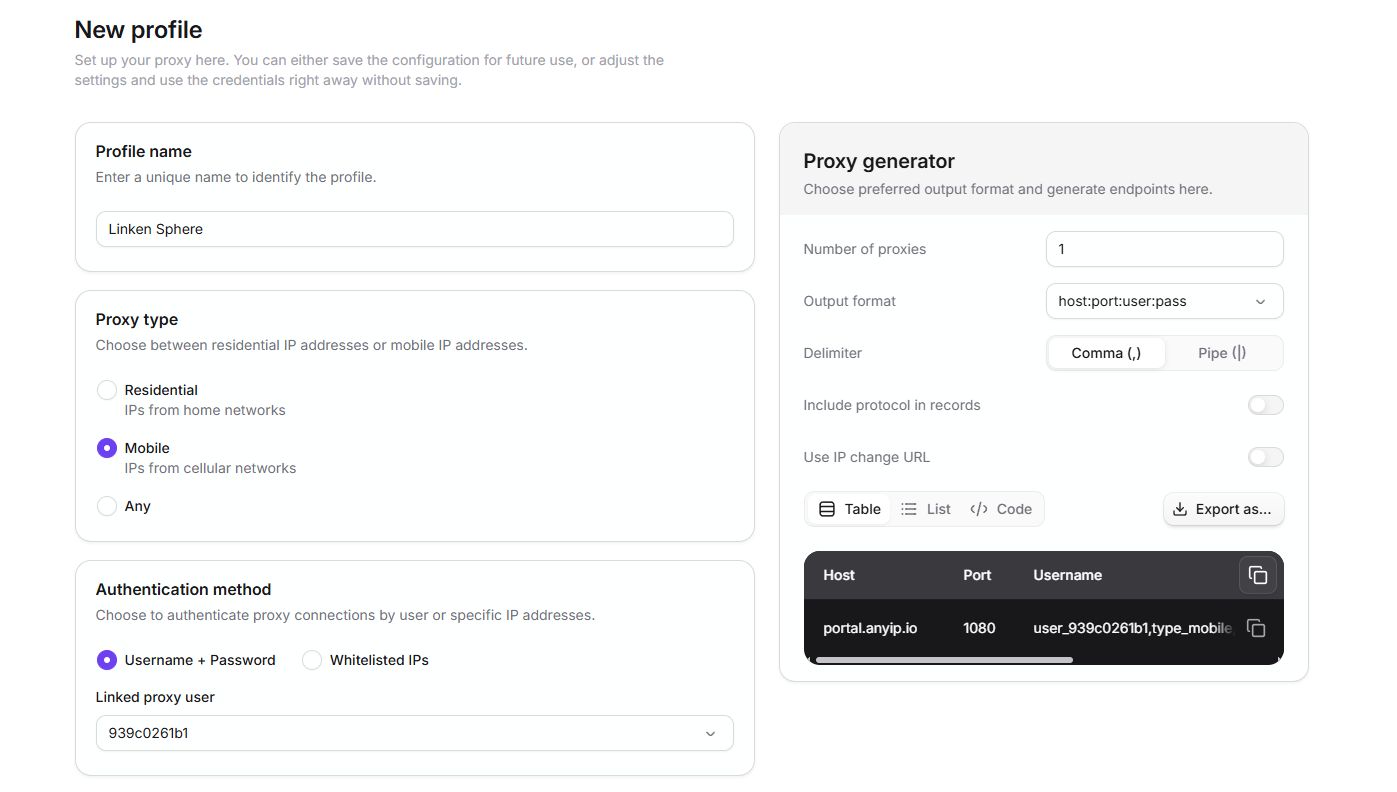
With the plan active, open the Proxies section. Find the team member you need under Team Member and click Get Proxy Details.
A team member is a separate set of authorization details. It isn't tied to one specific IP. With a single login, you can build different configurations, each with its own country, network type, and session ID.
The connection window will show you:
Host:
portal.anyip.io;Port:
1080or443;Username: the proxy login;
Password: the password.
For Linken Sphere, the login and password authorization is the easier route, since you don’t have to find the device IP.
3. Pick the proxy type
You set the network type with the type_ parameter.
For residential proxies, add this to the login:
type_residential
Example:
user_XXXX,type_residential
For mobile proxies:
type_mobile
Example:
user_XXXX,type_mobile
Leave the parameter out, and the service pulls from a mixed pool:
user_XXXX
For profiles you plan to keep long-term, choose one network type up front and stick with it unless you have a good reason to switch.
4. Set the country
Enter the country via the country_ parameter using a two-letter ISO code. For example:
United States —
country_US;Germany —
country_DE;United Kingdom —
country_GB;France —
country_FR;Italy —
country_IT.
Settings for a German residential proxy look like this:
user_XXXX,type_residential,country_DE
If you need tighter geo targeting, you can add a region or a city as well.
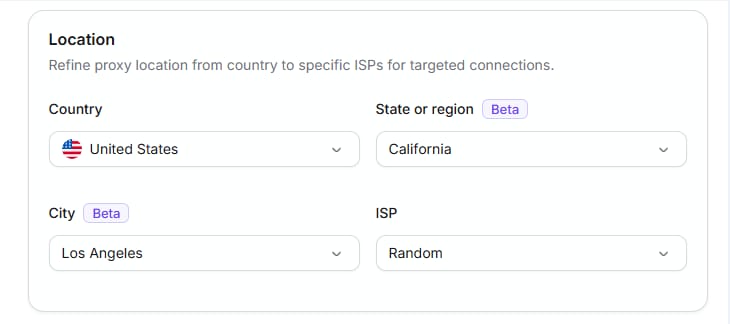
For example:
user_XXXX,country_US,region_california,city_losangeles
Order matters here: country first, then region, then city.
Not every city or carrier has the same number of addresses available at any given moment. The tighter you target, the smaller the pool you're drawing from. If the connection keeps dropping, strip your settings back to the country level and see if that helps keep requests stable.
5. Choose between rotation and a sticky session
By default, our pool changes the IP on every request. Rotating proxies are best suited for scraping and anything else where you want fresh addresses often.
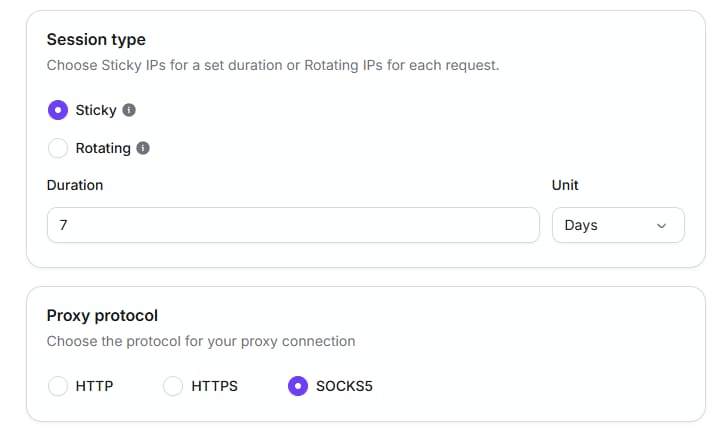
For steady work with an account, go with a sticky session instead. It pins one IP to the session ID you choose.
Add the session_ parameter to the login:
session_ls_profile_01
The full version:
user_XXXX,type_mobile,country_US,session_ls_profile_01
Give every Linken Sphere profile its own ID:
session_ls_profile_01;session_ls_profile_02;session_ls_profile_03.
Don't reuse the same session ID across unrelated profiles, or they may end up sharing one network session.
A sticky session won't turn the proxy into a static IP. Any proxy provider can only hold the address as long as the device behind it stays online. If that home router or phone drops off, we have to give you a different IP.
For long-running accounts, that's normal: the address changes when it has to, not on every request. Here are some ready-made configurations for your Linked Sphere profiles:
US mobile IP with a sticky session:
user_XXXX,type_mobile,country_US,session_ls_profile_01
German residential IP with a sticky session:
user_XXXX,type_residential,country_DE,session_ls_profile_02
US residential IP with rotation:
user_XXXX,type_residential,country_US
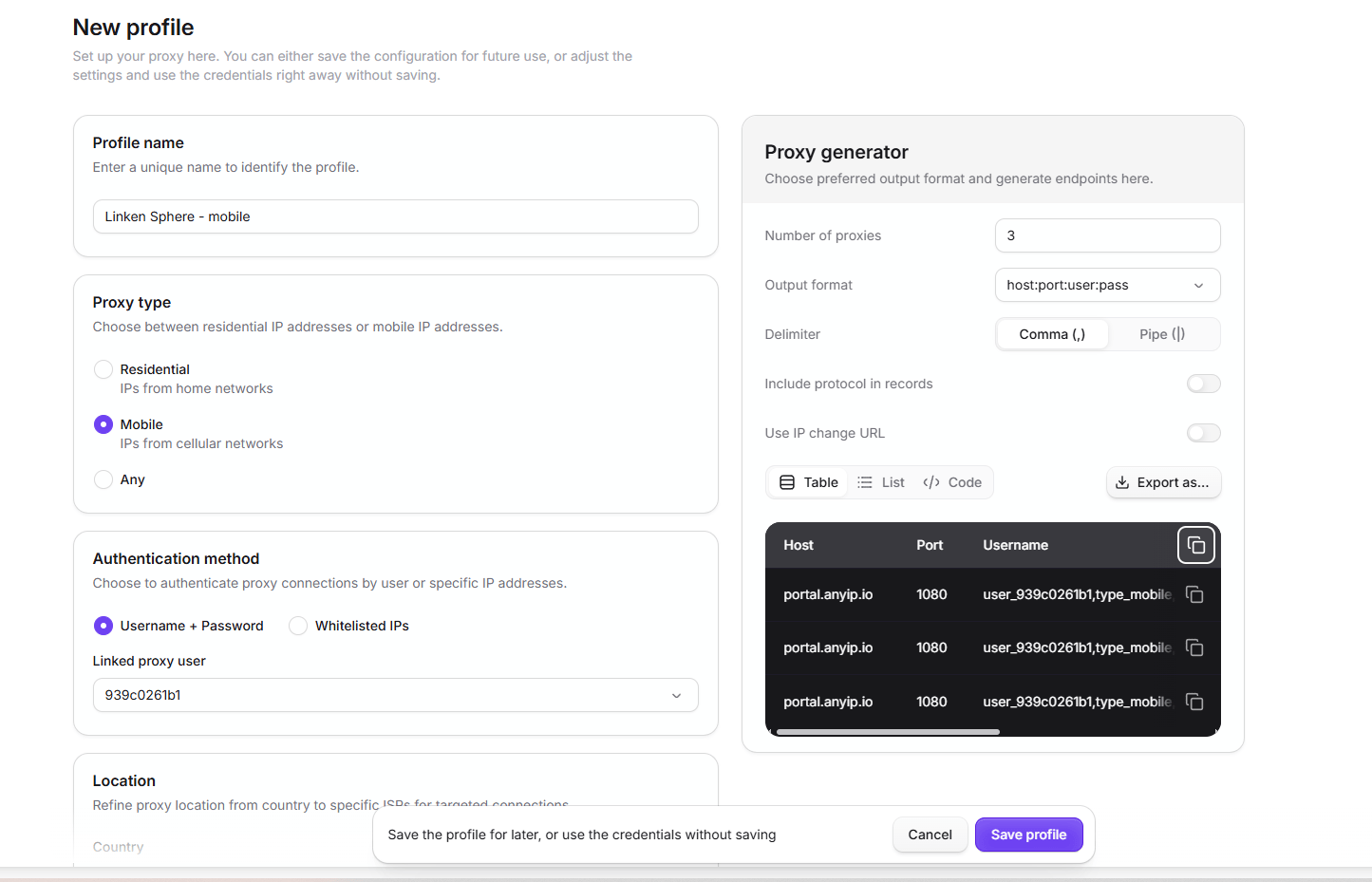
6. Copy the finished details
Once you set the parameters, copy your connection details. They'll look roughly like this:
Host:
portal.anyip.io;Port:
1080;Username:
user_XXXX,type_mobile,country_US,session_ls_profile_01;Password: the proxy password.
The import string:
portal.anyip.io:1080:user_XXXX,type_mobile,country_US,session_ls_profile_01:PASSWORD
Setting up a batch of profiles at once? Open the Proxy List Generator. It builds a list of configurations with different session IDs, and you can import them all into Linken Sphere in one go.
7. Add anyIP proxies to a new Linken Sphere session
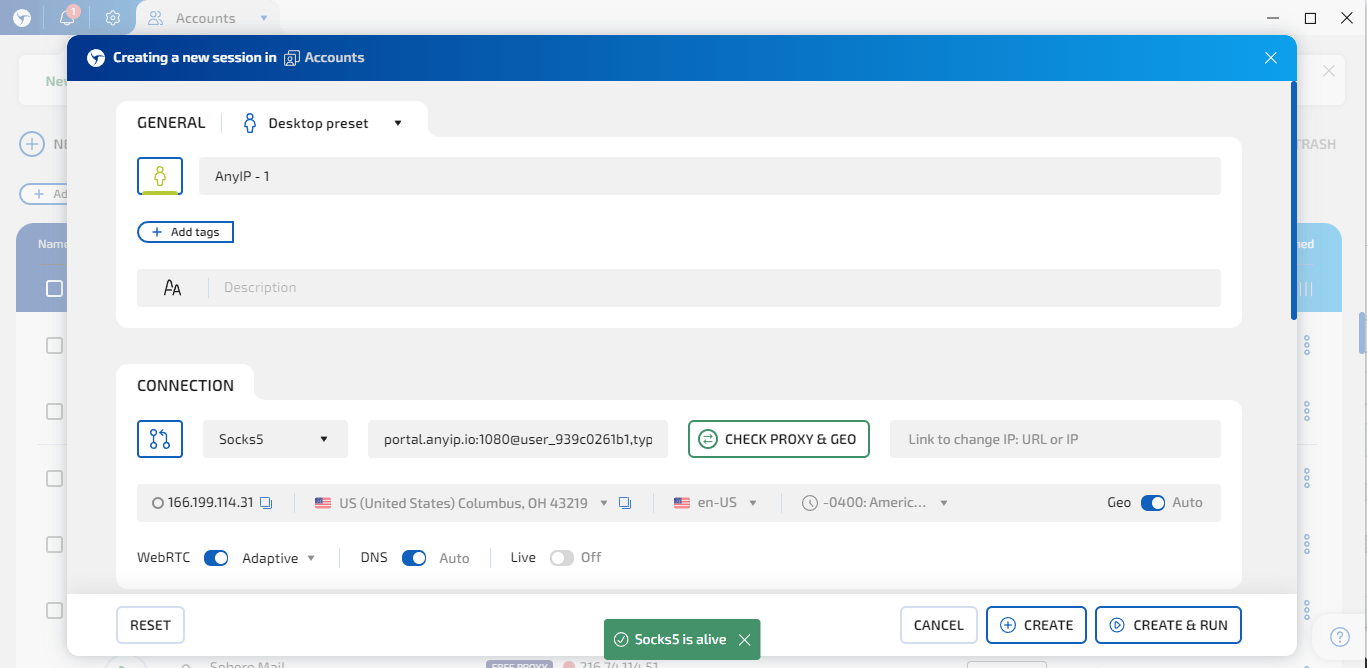
Open Linken Sphere and create a new session.
Name the profile, then go to the Connection section.
You can run it over either SOCKS5 or HTTP/HTTPS. For SOCKS5, fill the fields in like this:
Host:
portal.anyip.io;Port:
1080;Login: the full anyIP login;
Password: the proxy password.
The Login field takes the entire string:
user_XXXX,type_mobile,country_US,session_ls_profile_01
Remember that type_mobile, country_US and session_ls_profile_01 are part of the login. Linken Sphere passes them to anyIP when it connects.
With the details in, run the proxy check. If the connection goes through, Linken Sphere shows you the external IP and where it sits.
8. Add several proxies through Proxy Manager
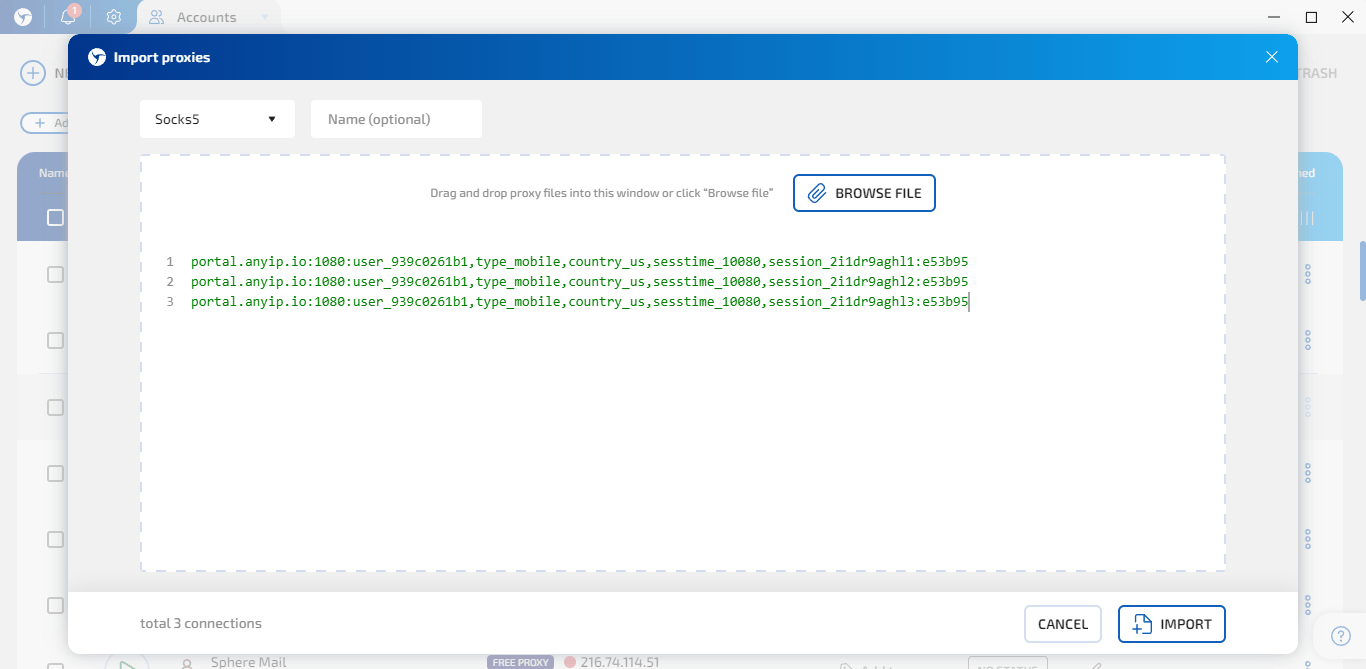
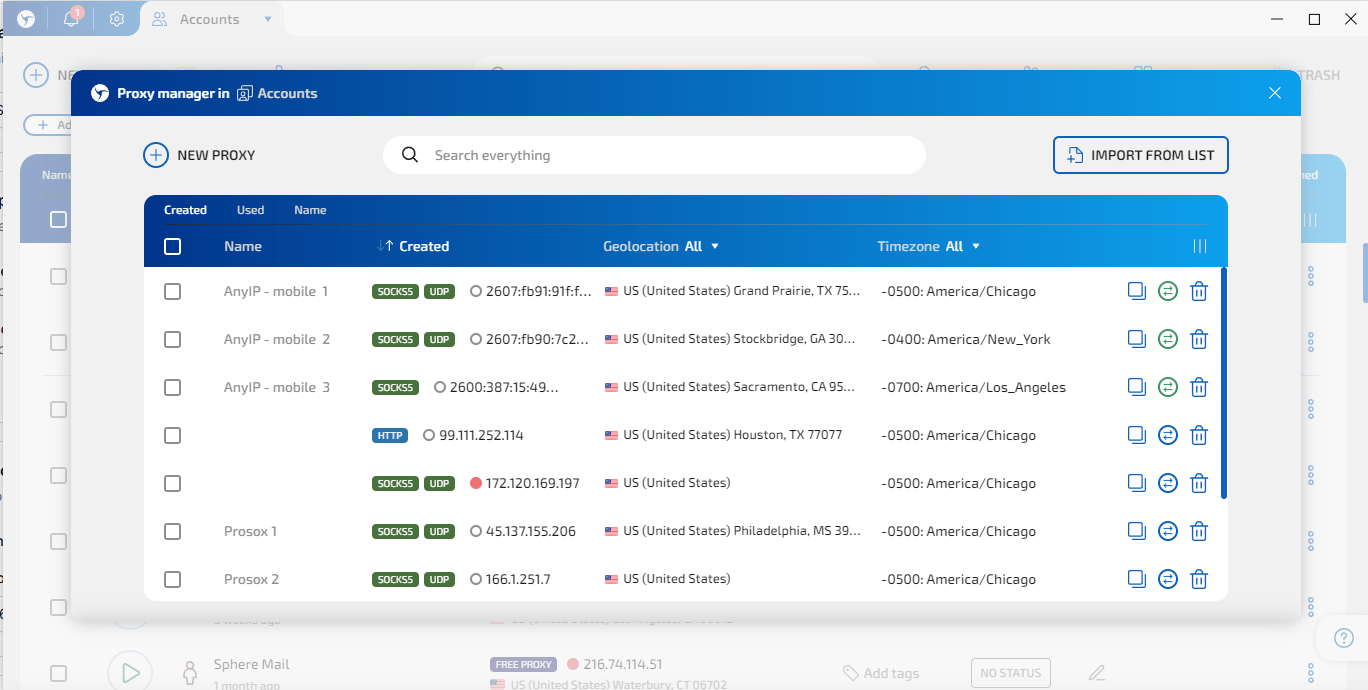
Once you're juggling many profiles, the built-in Linken Sphere Proxy Manager saves time. Open Proxy Manager and choose Import from list. Then:
Pick SOCKS5 or HTTP/HTTPS.
Name the group, say
anyIP US Mobile.Paste your proxy list.
Run the check.
Save the connections that work.
Assign them to the sessions you need.
Each configuration goes on its own line:
portal.anyip.io:1080:user_XXXX,type_mobile,country_US,session_ls_profile_01:PASSWORD
portal.anyip.io:1080:user_XXXX,type_mobile,country_US,session_ls_profile_02:PASSWORD
portal.anyip.io:1080:user_XXXX,type_mobile,country_US,session_ls_profile_03:PASSWORD
Each profile gets its own session ID, while the main anyIP account details stay the same. Proxy Manager also lets you check geolocation, connection speed, and the current status of each proxy.
9. Check the fingerprint settings
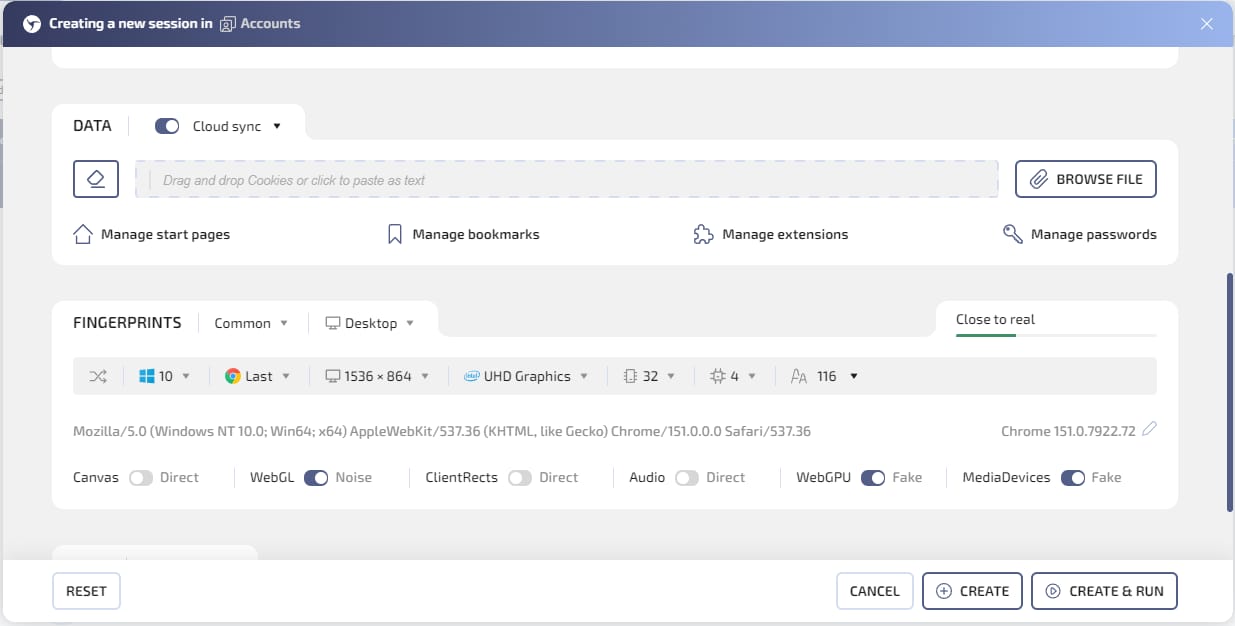
A proxy swaps your external IP, but it doesn't build an isolated browser environment on its own. So go through the rest of the profile settings before you launch. Look at:
time zone;
browser language;
geolocation;
WebRTC;
DNS;
operating system;
screen resolution.
None of these should clash with the proxy country. A US IP paired with a time zone from somewhere else can trigger extra checks on the site's side. Linken Sphere builds the fingerprint for you and lines up the main parameters, so most of the time the recommended settings are fine as-is, but there can be exceptions.
If you have cookies for the account, import them now.
For long-term work, keep the logic plain: one profile, one account, one proxy session. The fewer changes you make inside a profile, the more consistent its history looks to the site.
10. Launch the profile and check the IP
Save the session and start it.
Before you log into a working account, check the connection through any IP lookup service. Make sure that:
you see the proxy IP, not your provider's address;
the country matches what you picked in anyIP;
DNS and WebRTC aren't leaking your real connection;
pages open without constant errors;
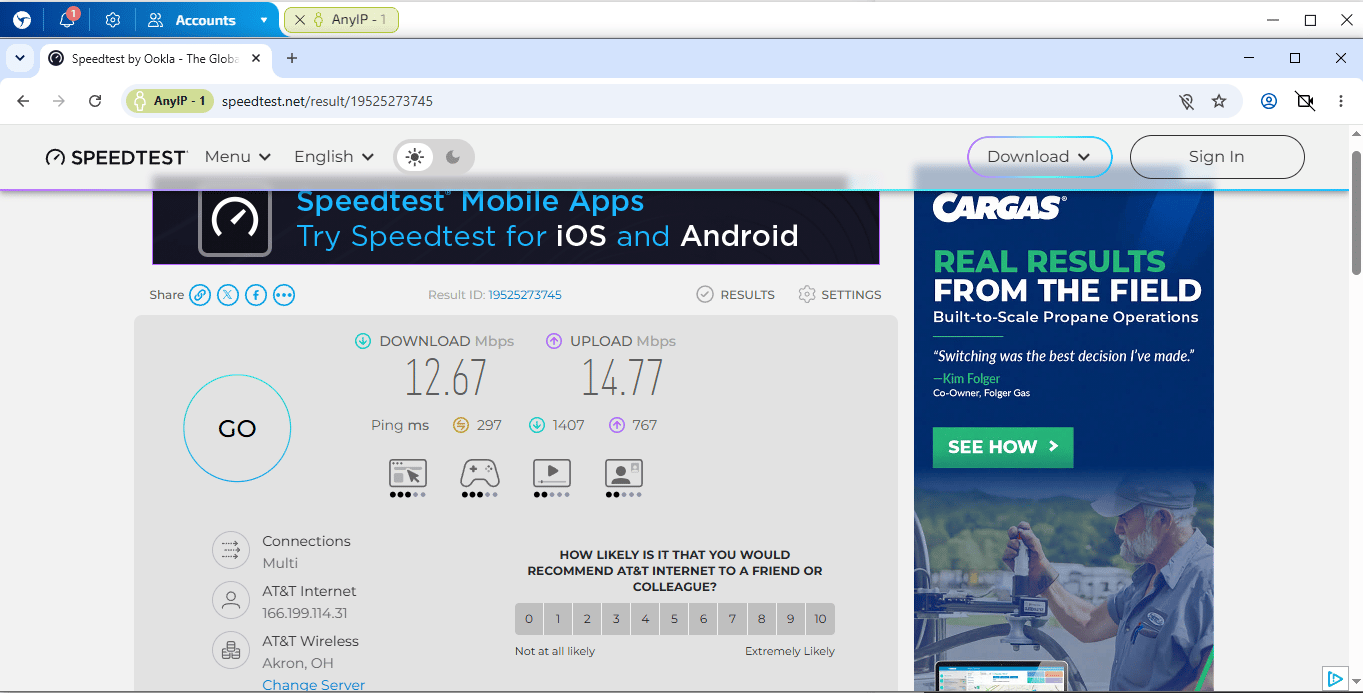
the speed works for what you're doing.
After that, you can check the fingerprint through something like fv.pro.
On a sticky session, refresh the IP lookup page a few times. The address should stay the same. Without the session_ parameter, the IP will keep changing, and that's how it's supposed to work.
Test the connection speed as well. If it's too slow or the latency is high, change the IP in anyIP or switch the region.
Troubleshooting
407 Proxy Authentication Required
A 407 points to authorization issues. Check:
whether the password is correct;
whether you copied the entire login;
whether there's a stray space at the start or end of the string;
whether the team member you're using is active;
whether you're on the right port.
Proxy authentication issues happen most often when someone pastes only user_XXXX into Linken Sphere and drops the rest of the parameters, or part of the login itself.
Connection Refused or Connection Timed Out
When the proxy stays silent:
Check that the subscription hasn't expired.
Look at how much traffic is left.
Try port
1080or443.Turn off any third-party VPN.
Copy the password again.
Drop the precise city or carrier targeting for now.
If it fails only in one country or on one network, the pool for that spot may be thin right now. Try another location, or residential instead of mobile proxies.
The IP keeps changing
Look for the session_ parameter in your login. Without it, the configuration would look like this:
user_XXXX,type_residential,country_US
Add the ID to pin the IP to the session:
user_XXXX,type_residential,country_US,session_ls_profile_01
If the IP changes even on a sticky session, nothing is necessarily broken. The assigned device may have gone offline, so the IP is no longer available.
Wrong country
Check the country_ parameter and the country code:
country_US
Slow speed
Speed comes down to the country you picked, the network type, and the quality of the device’s connection. Mobile proxies can run slower than residential ones. Latency also climbs when the proxy is far from where you are.
Things to try:
pick a closer country;
remove city targeting;
switch from mobile to residential proxies;
create a new sticky session;
test the connection on a different port.
Conclusion
Setting up anyIP in Linken Sphere is quick: copy the connection details from your dashboard and paste them into the profile, or import a ready-made list straight into the Proxy Manager. No extra steps, no parameters scattered across half a dozen fields.
Residential and mobile addresses come in one subscription, billed by traffic volume, so you're not buying two separate plans for two kinds of work. When your workload is mixed, part of it is on ordinary sites and part on platforms that heavily scrutinize IP quality, you’ll be saving a lot of time, money, and effort. Instead of buying several plans, you can manage it all under one.