
How to Manage Proxies and Multiple Accounts in 2026: A Review of the Incogniton Antidetect Browser
Table of Contents
Key takeaways
Incogniton helps businesses manage multiple online accounts by creating isolated browser profiles with unique digital fingerprints.
Pairing an antidetect browser with high-quality proxies improves privacy and reduces account-linking risks.
It's important to follow best practices, such as using one sticky IP per profile and matching browser settings to proxy locations, to maintain account trust.
Incogniton is well-suited for marketers, ecommerce sellers, agencies, and other professionals who manage accounts securely and at scale.
Multi-account management has moved from a nice-to-have for major businesses to a must-have for virtually any brand offering products and services globally in 2026. But as more companies and teams manage multiple accounts, many realize that getting blocked is far too easy.
Antidetect browsers with reliable proxy services have become the solution for many. A dual-layer setup makes it easier to manage access and create efficient multi-account setups while also providing a semblance of anonymity.
In this guide, we'll go over the Incogniton browser, its key strengths, and how to connect it with our proxies, so you can continue managing multiple online accounts safely and efficiently.
What Is Incogniton?
Incogniton is a strong antidetect browser (also referred to as an anti-detect browser, but we'll be using the term antidetect browser) for creating and managing multiple browser profiles.
Unlike standard browsers like Chrome, Mozilla Firefox, or Opera, Incogniton can detect your digital fingerprint parameters and generate new digital identities, providing much-needed privacy and anonymity online. Moreover, every new profile you create has its own fingerprint, so every profile has a stable, long-term identity.
Besides providing fingerprint customization, Incogniton also offers:
Bulk profile creation: Create multiple browser profiles by using automated templates.
Fingerprint generator: Randomizes your hardware parameters, Canvas/WebGL signatures, audio context, installed fonts, and screen resolutions.
Team accounts: Assign who has access to specific browser profiles to control all login credentials.
Synchronizer (no-code automation): Sync all actions across multiple browser windows in real time.
Selenium and Puppeteer support: Integrate established libraries to build advanced automated scraping or posting scripts.
Cookie collector: Use Incogniton's cookie bot to build a realistic browser history to increase trust signals for visiting sensitive platforms.
Paste as human typing: Bypass copy-paste detection protocols to save time on typing credentials.
Who Incogniton Is Best For
Incogniton is built for professional operators, agencies, and businesses, as while it has a free plan, most of the best features require a paid plan. But you get a lot for a relatively small price, so for professional use it’s a no-brainer. It also helps that the browser's interface and features are specifically designed to process repetitive, high-volume tasks for different industries:
Social media managers and agencies: Manage multiple client accounts for Facebook, TikTok, Instagram, and LinkedIn without triggering cross-account association bans.
Ecommerce sellers: Control stores on Amazon, eBay, Etsy, or Stripe to expand your reach to new or niche markets.
Affiliate marketers: Track all of your affiliate campaigns globally and scale ad accounts on Google Ads and Meta Ads.
Ad verification and web research teams: Check ad performance on all devices, including mobile platform ads, analyze regional pricing, and run competitor intelligence research.
While Incogniton provides its own proxies to integrate into the browser, most users find that’s not enough and use a separate proxy provider.
Why You Need Both an Antidetect Browser and a Proxy
Antidetect browsers have most of the tools you need to manage multiple accounts and keep them separate for better control, but that doesn't guarantee full access to all locations. The ability to create 10 different profiles is great, but if a target destination links all of them to the same device, you'll likely be flagged or blocked.
Moreover, as data scraping becomes more advanced, many platforms, particularly major ones, use sophisticated security and anti-bot systems that block accounts by relying on browser fingerprints and IP address metadata.
As a result, most antidetect browsers include multi-tool support and proxy integrations. Incogniton provides 25+ dedicated proxy integrations for easier, smoother proxy management.
There are a few different types of commonly used proxies, but the two most popular groups are:
Mobile and residential proxies: Use real device IP addresses assigned by internet service providers (ISPs), so they carry strong trust signals. Mostly used for logging into major sites like social media and similar tasks.
Datacenter proxies: Cheap and fast, but they're sourced from business-owned servers. Great for mass web scraping but much easier to detect.
Setting Up Incogniton with anyIP Proxies
Incogniton browser supports many proxy providers. We’ll be using our residential and mobile proxies, since these are the ones you’ll use most. Datacenter proxies can work, but they get blocked far too often and too quickly.
On top of this, integrating proxies into your Incogniton browser is a clear-cut process that only requires 5 steps to complete.
Step 1: Retrieve Proxy Credentials
Log into your anyIP account. If you don't have one, register and choose a pricing plan that fits your needs. After that, go to the main dashboard, click on Proxies, then Profiles, and then +Add profile.
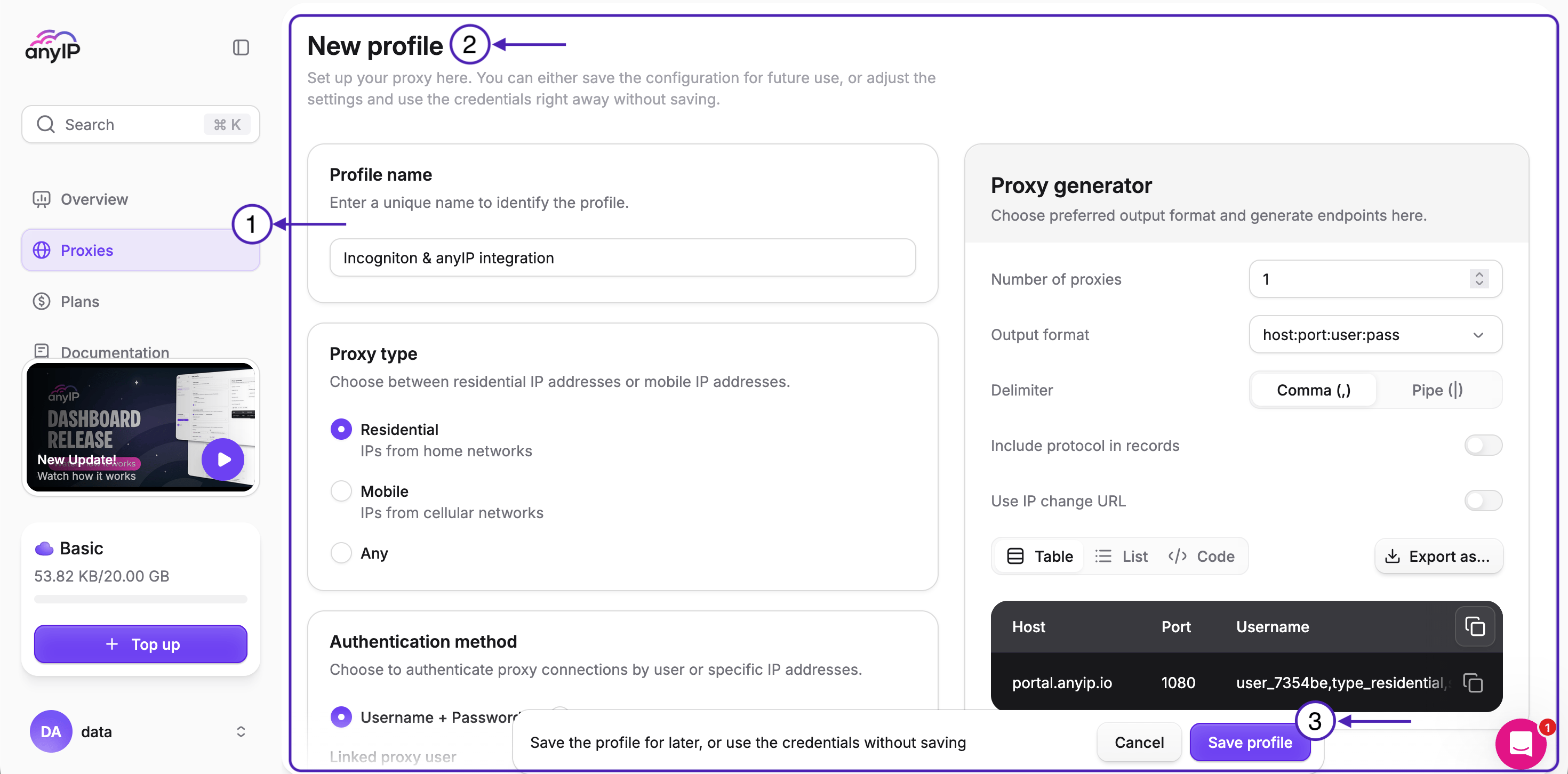
You'll see a new window open where you'll be able to choose:
A proxy profile name (it's generally recommended to name your proxy profiles for easier management)
Proxy type (residential or mobile)
Target country
A preferred authentication
Proxy session type (sticky or rotating)
Proxy protocol (HTTP, HTTPS, SOCKS5)
Once you've made your choice, click Save profile. Now your proxy profile should be active. To access your proxy credentials, click the proxy profile to see your proxy's host, port, and username & password.
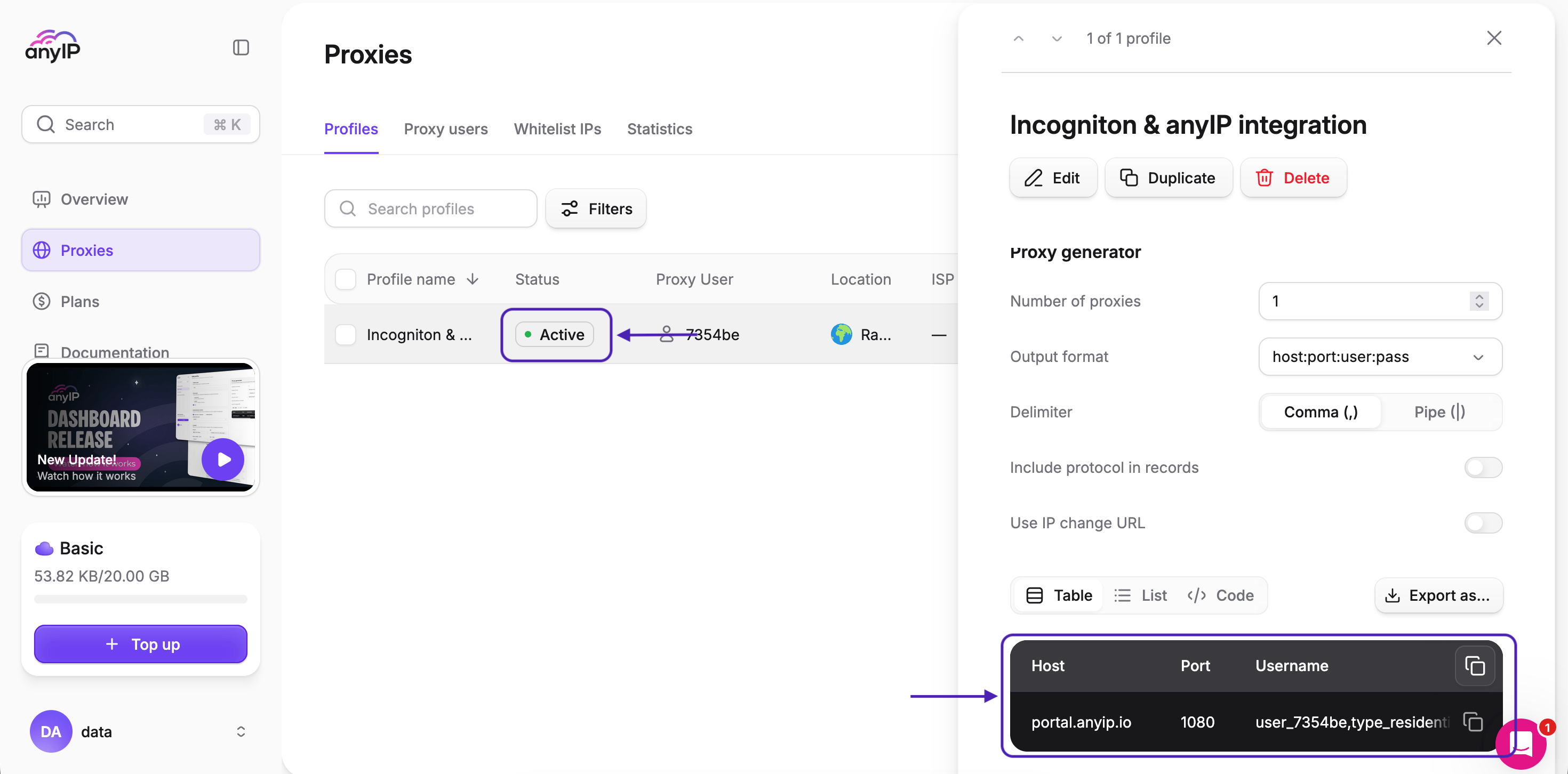
Step 2: Create a New Profile
Next up, choose the pricing plan you need to download the Incogniton browser. Make sure to choose the right version for your device – currently, Incogniton supports Mac and Windows.
Once the browser is downloaded, you'll have to create a free account and confirm your email. After that, you’ll be able to access the dashboard.
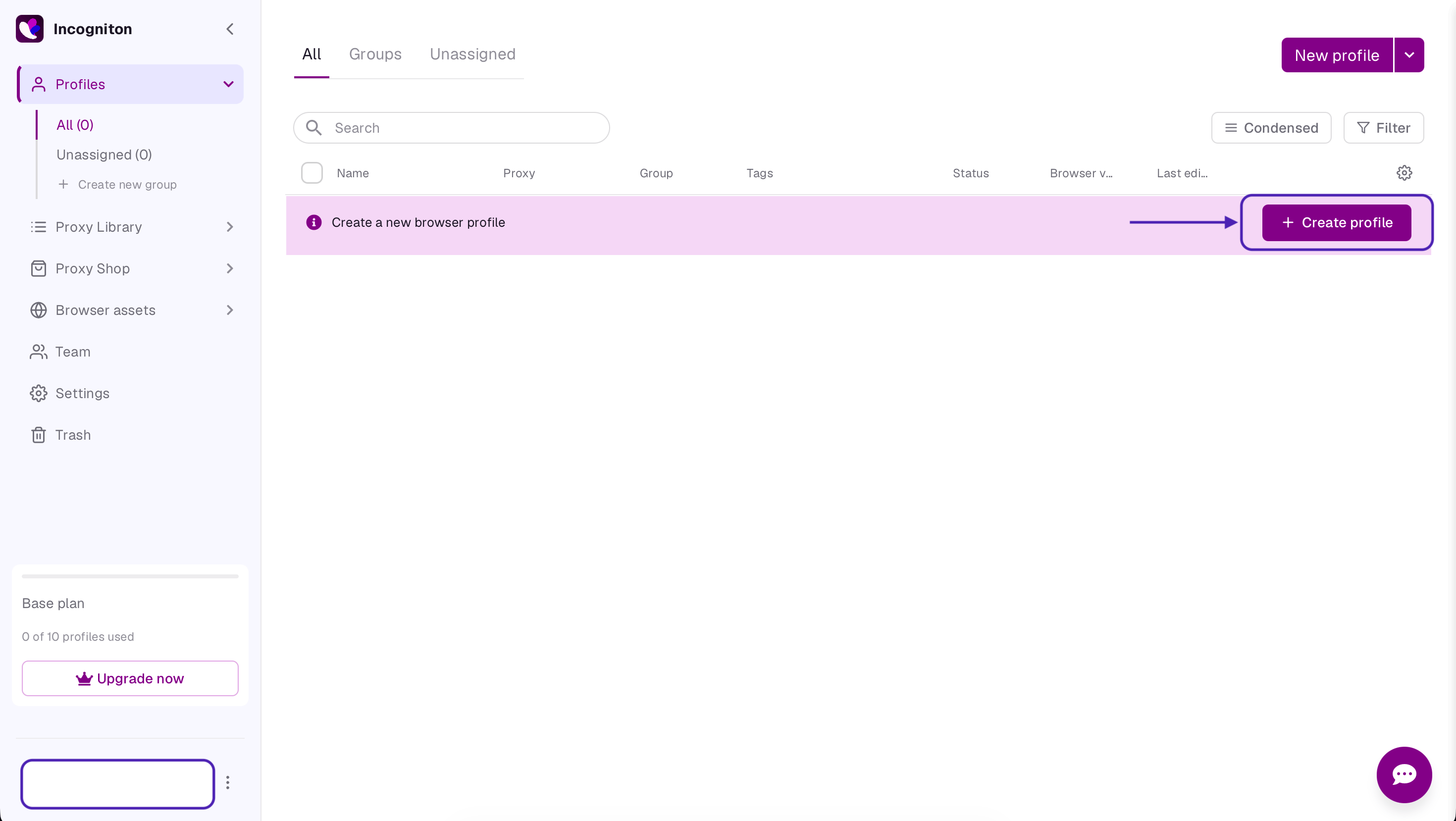
Click on +Create profile and, just like with the proxy you set up before, give your Incogniton profile a distinct name.
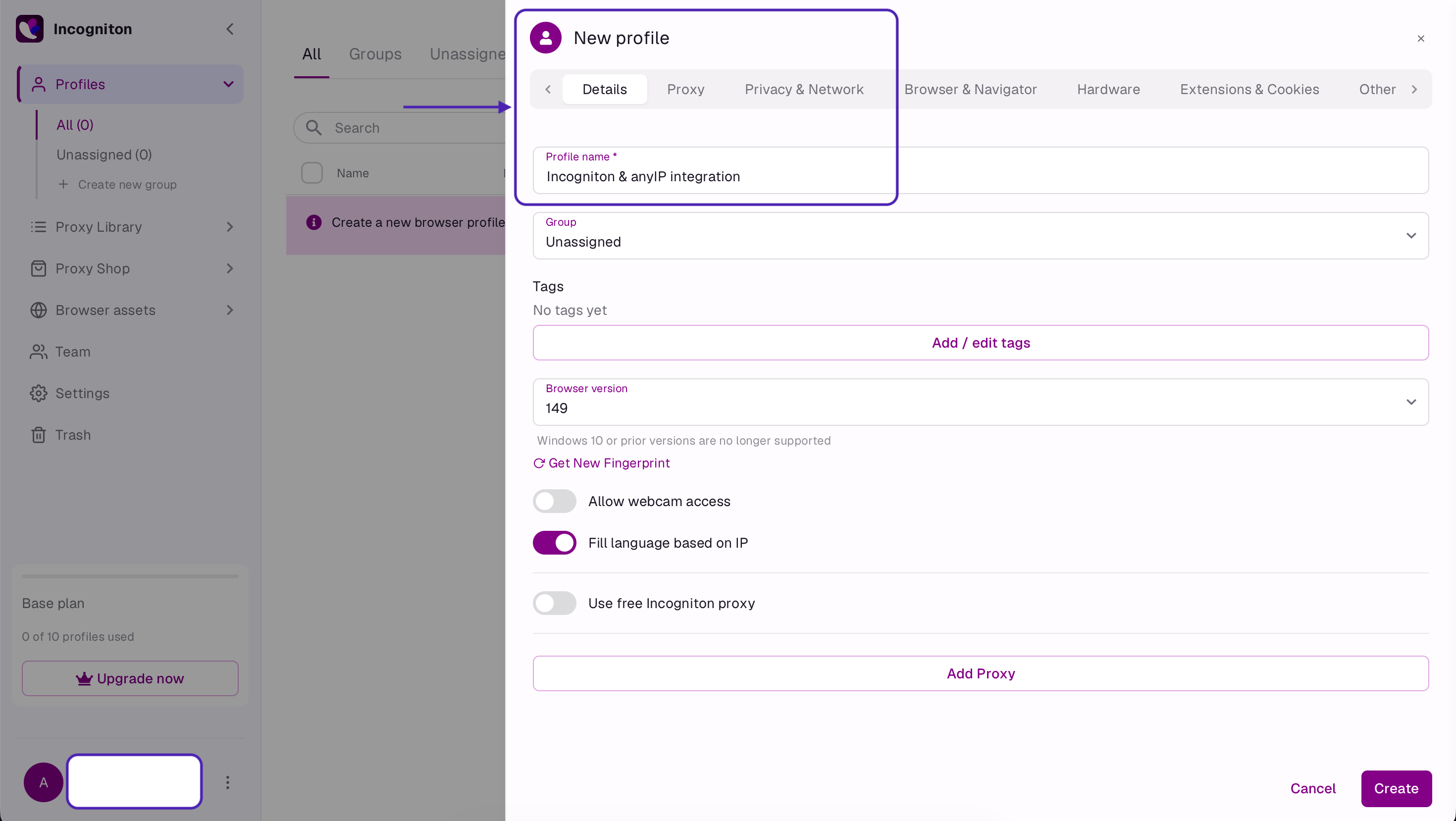
Step 3: Configure Proxy Settings
After naming your Incogniton browser profile, click on Proxy on the top grey bar. This is where you'll add a proxy to your newly created profile. Once you're there, start by specifying the type of proxy you'll add, then the protocol (it must match your proxy's protocol).
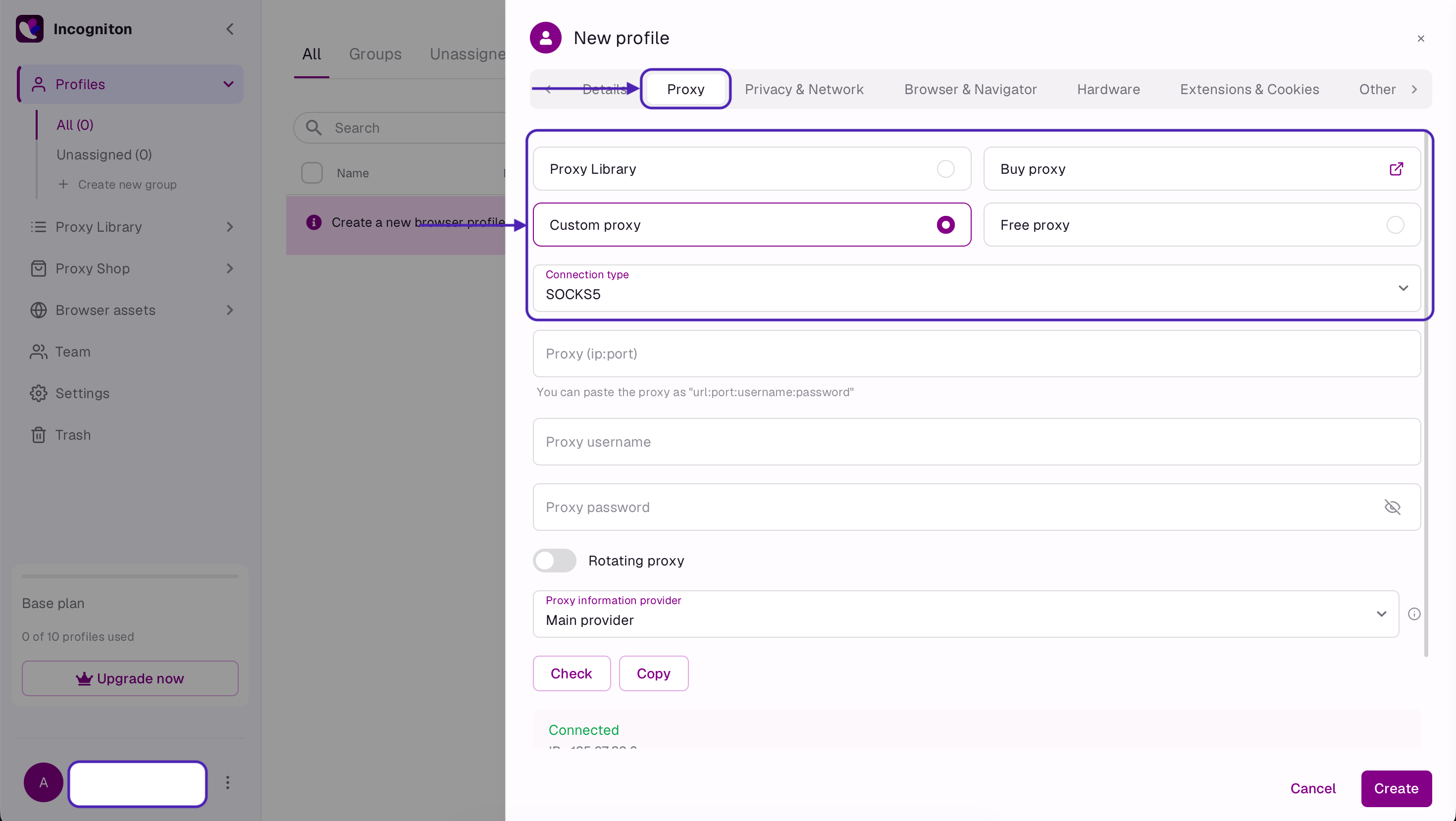
Step 4: Input Proxy Credentials
Once you select the proxy and connection type, scroll down and paste your proxy credentials. Note that you'll likely need to paste your host and port on the same line using this format: IP:port.
After that, you can check whether your proxy is active by clicking on the Check button near the bottom of the window. If it shows Connected, you're good to go. If not, try verifying whether your proxy details are correct.
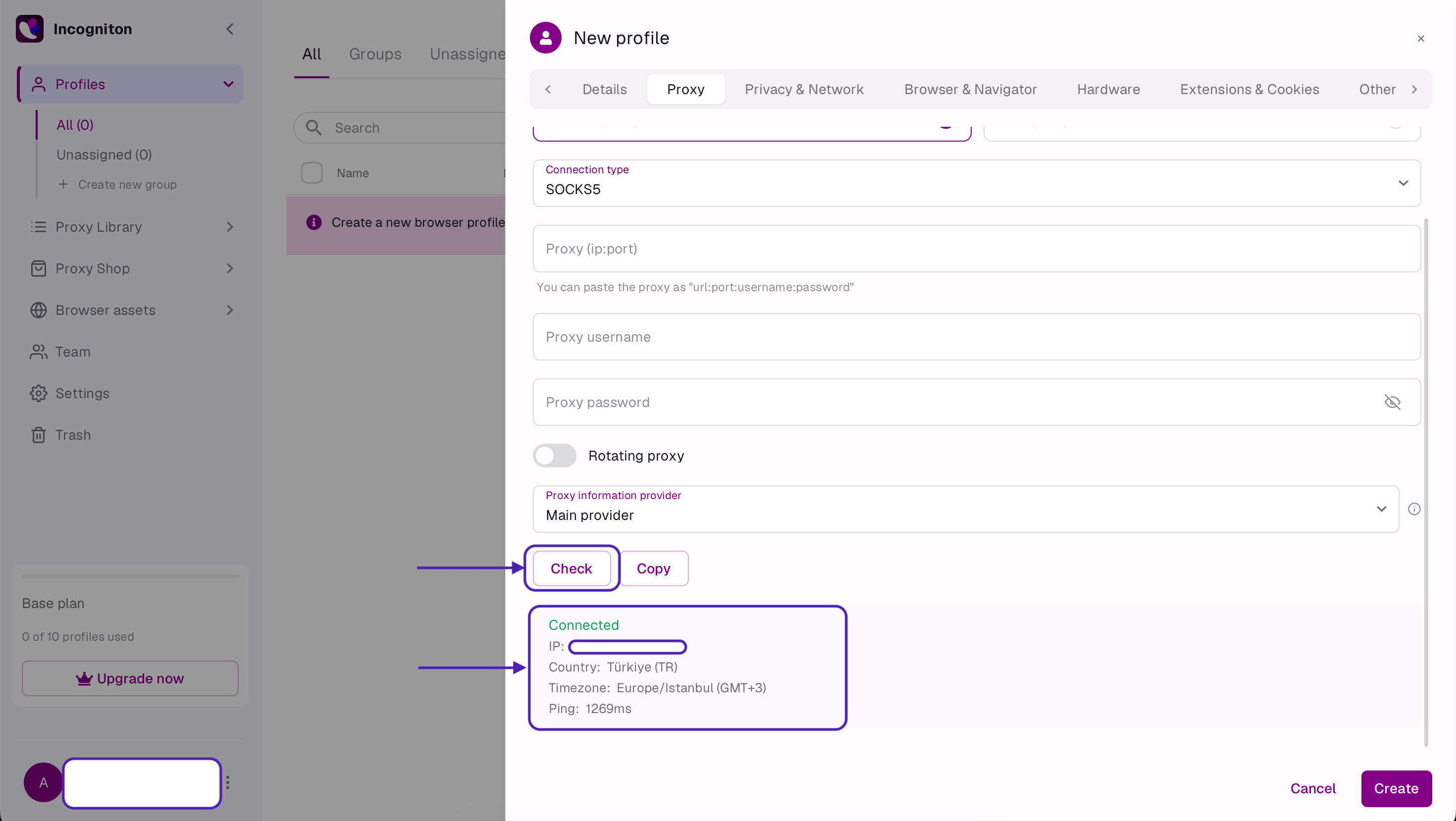
Step 5: Save and Launch
All that's left to do is click on Create, and your Incogniton browser profile will be set up with your specified proxy. Locate your new profile on the main dashboard and click Start to launch your fully isolated browser window.
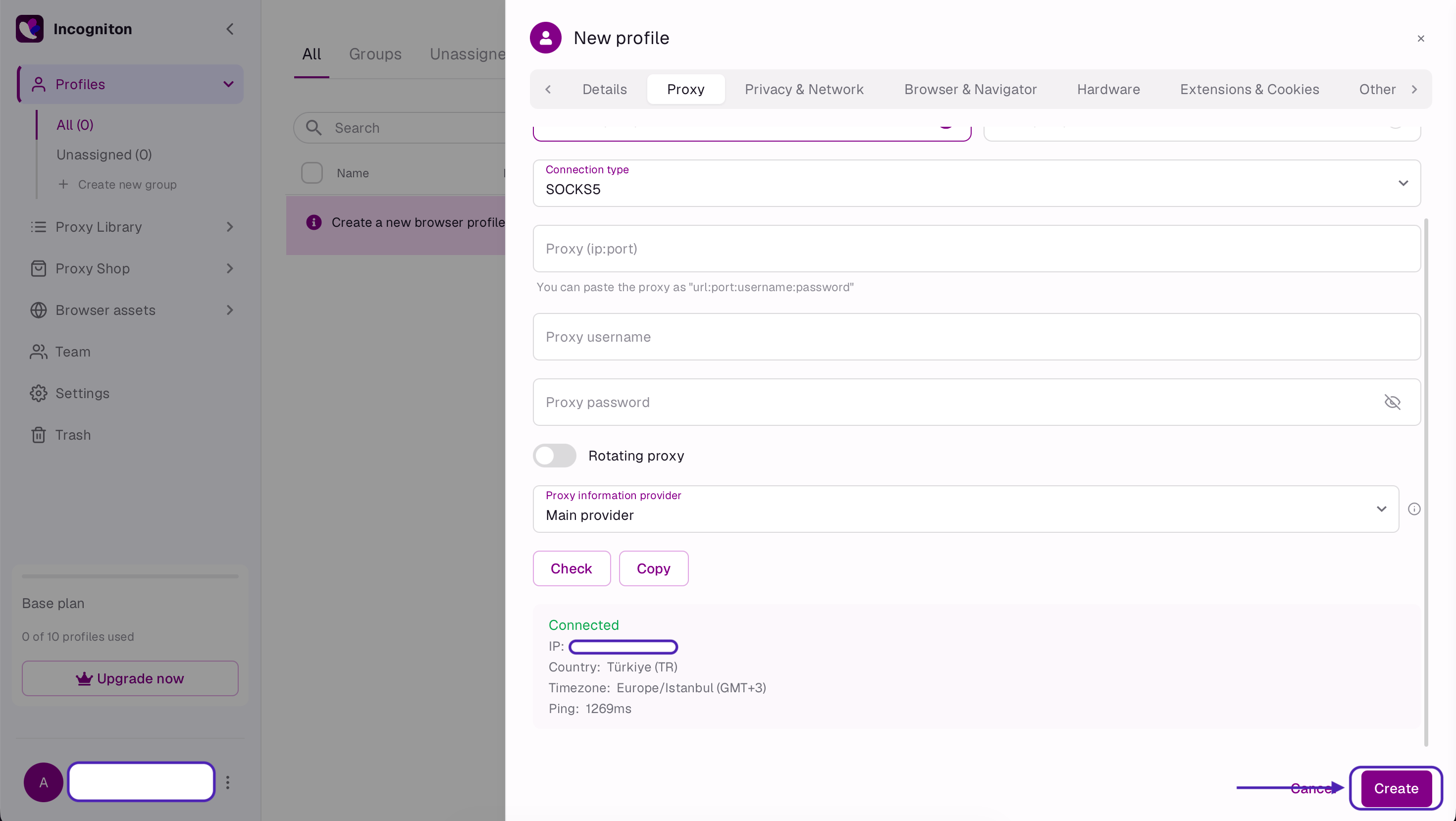
Validating Your Setup
Creating accounts with dedicated proxies follows the same process, but there is one more thing to consider. While your dashboard might show an active connection, it's always better to confirm your proxy's IP address, especially if you're working with sensitive information or preparing to access a high-value account or secure platform.
One of the best ways to do that quickly is to open another tab and use an online fingerprint-checking tool like Iphey.com or Whoer.net. Both of these and similar services analyze your browser and provide an IP score based on historical data to find out whether that IP is secure.
When your tool of choice shows you the results of your IP, focus on these features:
| Timezone and language | Your browser's local system time and language should match the geographic region of your proxy's IP. A mismatch (e.g., a German IP with an English/New York timezone) is a major red flag for anti-fraud filters. |
| WebRTC and DNS leaks | Make sure your DNS servers match the location of your proxy, and WebRTC is set to "Altered" or disabled on your Incogniton browser to prevent your real device information and IP address from leaking. |
| User-agent consistency | Browser engine should show the same details as your Incogniton profile (if you configured the profile as macOS, the validation shouldn't detect Windows). |
Best Practices for Managing Multiple Accounts
Running multiple profiles successfully requires strict operational habits. This helps secure your operations and comply with the privacy and terms & conditions policies of your target websites.
One sticky IP per profile: Never use the same proxy IP for multiple accounts. Use sticky sessions so that a single account always logs in from the same IP.
Same geographic signatures: Ensure that your proxy location, browser language, timezone, and geolocation coordinates are completely consistent.
Warm up new accounts slowly: Use Incogniton's built-in Cookie Collector to browse everyday websites for a few days to build trust before logging in.
Use human-like inputs: Use Incogniton's Paste as Human feature to make your form submissions look natural to bot detection systems.
Enable 2FA and use a password manager: Secure every account with two-factor authentication (2FA) and store your credentials using an external password manager.
Incogniton Pricing
Incogniton offers a tiered pricing model to accommodate everyone from solo operators to large marketing agencies. Note that while every tier includes Incogniton's core antidetect engine, advanced features are only available with the Entrepreneur plan and up.
| Incogniton plan tier | Cost | Profile limit | Key audience |
|---|---|---|---|
| Free Starter trial | $0/month | Up to 10 profiles (drops to 3 profiles after 2 months) | Solo users testing workflows |
| Starter Plus | $19.99/month | Up to 10 profiles | Individual professionals |
| Entrepreneur | $29.99/month | Up to 50 profiles | Freelancers & small agencies |
| Professional | $79.99/month | Up to 150 profiles | Growing teams (3 seats included) |
| Custom Package | $149.99+/month | 500+ profiles | Enterprise automation teams |
Pros and Things to Consider
Incogniton is an all-in-one antidetect browser with many useful features and advanced proxy creation capabilities, which include in-house free proxies. However, this browser isn't built for everyone, so here's a comparison table that lays out all of the main pros and considerations.
| Pros | Considerations |
|---|---|
| Robust profile isolation and fingerprint isolation | Steeper learning curve |
| Strong automation and collaboration features | Advanced features and API access available for the Entrepreneur tier and above |
| Generous on-ramp with 10 profiles for the free trial | No mobile fingerprints or mobile app |
| Helpful built-in tools like Cookie Collector and Paste as Human | Updates may lag slightly behind main Chrome releases |
Conclusion
Running a successful multiple account management project in 2026 takes more than having good organizational skills – it requires choosing the right tools. Incogniton is a market-tested antidetect browser with some of the most advanced features developed for professional use, allowing small-to-large teams to create multiple profiles and secure them with high-quality proxies from providers like anyIP.
Frequently Asked Questions
Is using Incogniton legal?
Yes. Using an antidetect browser is completely legal. They are widely used for digital marketing, privacy protection, and managing multiple distinct business profiles. At the same time, you must always adhere to local laws and not use Incogniton for illicit or illegal activities, so always consult with a professional before using any tool.
Can Incogniton guarantee my accounts won't be banned?
No antidetect browser can offer a 100% guarantee against account blocks because this largely depends on the user's actions. While Incogniton technically prevents your profiles from being linked through fingerprints, you can still be flagged due to easily tracked behavioral patterns, low-quality proxies, or violations of a platform's policies.
Should I use residential or mobile proxies?
For important accounts like Facebook, Amazon, or Google Ads, residential or mobile proxies are highly recommended. Both of these proxy types offer the highest trust scores because they route your traffic through real home networks or mobile carriers, making them much harder to flag compared to datacenter IPs.
Do I still need a proxy if Incogniton has free built-in ones?
While Incogniton's built-in proxies are convenient for basic testing or web scraping, they are often shared by many users. This is why we recommend choosing a trusted and premium proxy service provider for long-term business operations.
What hardware do I need to run many profiles at once?
Managing a multitude of accounts can indeed be resource-heavy. For better performance, it's recommended to use a system with at least 2 GB to 4 GB of storage per profile, an up-to-date multi-core CPU, and a solid-state drive (SSD) for local profile storage.
Article by
Khaled Bentoumi
Khaled is a software engineer. He's been involved in many startups of different sizes. Previously, he founded Data to Page, an AI Programmatic SEO startup. He now handles all the marketing at anyIP.


:format(webp))
:format(webp))
Read more
How to customize Your User-Agent with Python Requests
Learn how to update and rotate user-agents in Python Requests to avoid detection and improve scraping efficiency.
:format(webp))
How to Set Up SOCKS5 Proxy in Chrome: Ultimate Guide
In this tutorial, we’ll show you how to quickly set up a SOCKS5 proxy in the popular web browser Google Chrome
:format(webp))
How to Set Up Proxies with Potatso in iOS: Guide
Discover the ultimate Potatso proxy guide! Learn how to set up and configure proxies on your iOS device effortlessly.